Component Generation with Figma API: Bridging the Gap Between Development and Design
Introduction
In today’s fast-paced software development world, efficient workflows and clear responsibilities between development and design teams are crucial. One way to streamline these workflows is by automating component generation from design tools like Figma to code using modern tech stacks. For example, programming languages like Golang are useful for this task because of their simplicity. However, the main factor in choosing a tech stack should be ease of maintenance and available support. It’s important to check if there are official packages or API documentation, like OpenAPI specs, that can help generate code in different languages.
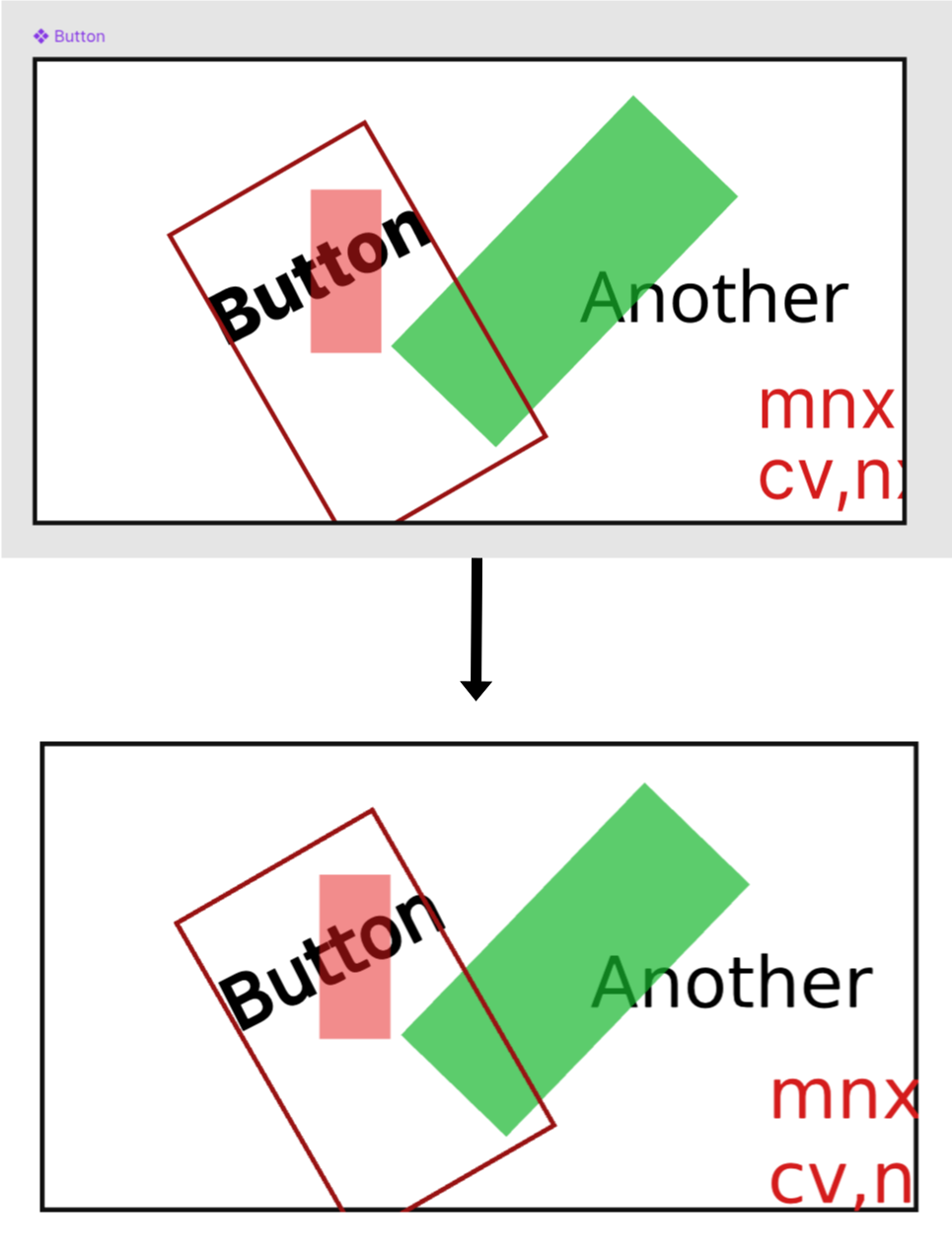
Figma provides OpenAPI specs written in OpenAPI 3.1, but not all code generation tools fully support this version. Downgrading the specs is not practical, as it requires constant maintenance. Manually implementing the specs is also not viable due to their size. Fortunately, Figma offers a complete TypeScript implementation of their API interfaces in @figma/rest-api-spec. TypeScript is a great language to work with, so we can develop a tool to generate QML code from Figma components using TypeScript. This article will explore how to convert Figma components to code, focusing on clear roles for development and design teams.
QML is a markup language used for UI development. By mapping Figma components to QML, you can automate the generation of QML code from Figma data, making the transition from design to code smoother.
Why Automate Component Generation?
Automating component generation is important in modern software development. Converting Figma designs to code increases efficiency and consistency. Figma, a popular design tool, helps bridge the gap between design and development.
Introduction to the Figma API
The Figma API lets developers access and manipulate design data programmatically. This is essential for converting Figma designs to code and enables better collaboration between design and development teams.
Setting Up Your Development Environment
For this project, I chose TypeScript for the reasons mentioned above. To run the example code, you’ll need to install Node.js. Using nvm makes managing Node.js versions easy. Also, install yarn for package management. You’ll need a Figma account to generate the API key required to access the REST API. A free Figma account is enough.
Writing the Code for Figma API Integration
Mapping Figma Components to QML
Let’s look at how Figma designs (described by their interfaces) can be converted to QML. We’ll focus on simple shapes like Rectangle, Text, and a base component that can contain other shapes. No matter what shape we render, we need three things:
- Bounding box – This is the rectangular area where we draw the shape. We need its size (width/height) and position (x/y). It doesn’t have color. Everything inside is relative to this box. If it’s the root component, anything outside should be clipped.
- Rotated rectangle – The only child of a bounding box is another rectangle, centered in its parent. Here, we define the border and rotation. Rotation is important because everything is relative to the bounding box. The color is set to transparent.
- Actual component – This is the shape we want to render (as a child of the rotated rectangle), like a rectangle or text. Here, we set the color, opacity, etc.
It’s important to separate the bounding box content into two parts because in QML, setting opacity on a shape also affects the borders. In Figma, these are independent—the shape color can be transparent, but the border should still be visible.
Using Templates
Templates are a natural way to express the three items above. They keep the design separate from the code that fetches data from Figma and converts it. I chose Handlebars because it’s easy to use and popular.
Here’s the template used to generate elements:
Rectangle {
	color: 'transparent'
	x: {{x}}
	y: {{y}}
	width: {{width}}
	height: {{height}}
{{#if clip}}
	clip: true
{{/if}}
	Rectangle {
		anchors.centerIn: parent
		width: {{originalWidth}}
		height: {{originalHeight}}
		rotation: {{rotationDeg}}
		color: 'transparent'
	{{#if borderColor}}
		border.color: {{borderColor}}
	{{/if}}
	{{#if borderWidth}}
		border.width: {{borderWidth}}
	{{/if}}
{{{indent child 8}}}
	}
}
This template covers all three items discussed above. The child variable is the actual component, like text. There are two widths: width and originalWidth. width is the bounding box width, but the item inside may be rotated. Figma gives the rotation angle and bounding box dimensions, but QML needs the shape’s dimensions before rotation. You can calculate these with:
bboxWidth = originalWidth * cosR + originalHeight * sinR
bboxHeight = originalWidth * sinR + originalHeight * cosR
This can be understood from the following picture:

By reversing these equations, you can find the original dimensions.
Note: When reversing these equations, the original dimensions depend on the cosine of twice the rotation angle. This means there is a mathematical singularity at 45 degrees, where the calculation becomes unstable. To resolve this, knowing the ratio of the original height to width would help, but the Figma API does not provide this information.
For the child, we use templates too. For example, the text template looks like this:
Text {
	text: "{{characters}}"
	font.weight: {{style.fontWeight}}
	font.pixelSize: {{style.fontSize}}
	wrapMode: Text.WordWrap
	width: parent.width
	{{#if style.fontFamily}}
	font.family: "{{style.fontFamily}}"
{{/if}}
{{#if color}}
	color: {{color}}
{{/if}}
{{#if style.lineHeightPx}}
{{#if style.fontSize}}
	baselineOffset: {{calcBaselineOffset style.lineHeightPx style.fontSize}}
{{/if}}
{{/if}}
}
Extracting Design Components from Figma
To get Figma data, request it from the endpoint: /v1/files/:key/nodes?ids=component_id. A successful request returns a JSON structure described by the GetFileNodesResponse interface.
Figma expects the API token in the X-Figma-Token header. Here’s how to implement it:
const url = `https://api.figma.com/v1/files/${fileKey}/nodes?ids=${componentId}`;
const response = await fetch(url, {
	headers: {
		"X-Figma-Token": figmaToken,
	},
});
Generating QML Components from Design Data
Use these commands to build and run the code:
yarn install
yarn build
yarn start --fileKey FILE_KEY --componentId COMPONENT_ID --figmaToken FIGMA_TOKEN
You can find the complete code used in this article here.
Conclusion
Clear roles and responsibilities are essential for successful collaboration. Tools and processes that automate component generation from Figma to code greatly improve teamwork and productivity. UI/UX designers can focus on creating designs and prototypes, while software developers can generate code (QML, React, etc.) from Figma design files.
FAQs
- What is the Figma API, and how does it work with code generation? The Figma API lets developers access and manipulate design files programmatically. When used with code generation, it helps extract design components and convert them into code, streamlining the workflow from design to code.
- How can automated component generation benefit my project? Automated component generation reduces development time, improves consistency, and enhances collaboration between design and development teams, making your workflow more efficient.
- Can this approach be scaled for larger projects? Yes, this approach can be scaled for larger projects. By following best practices for scalability and performance, you can extend the functionality and manage increased complexity as your project grows.